
NEC – Call Transfer Feature
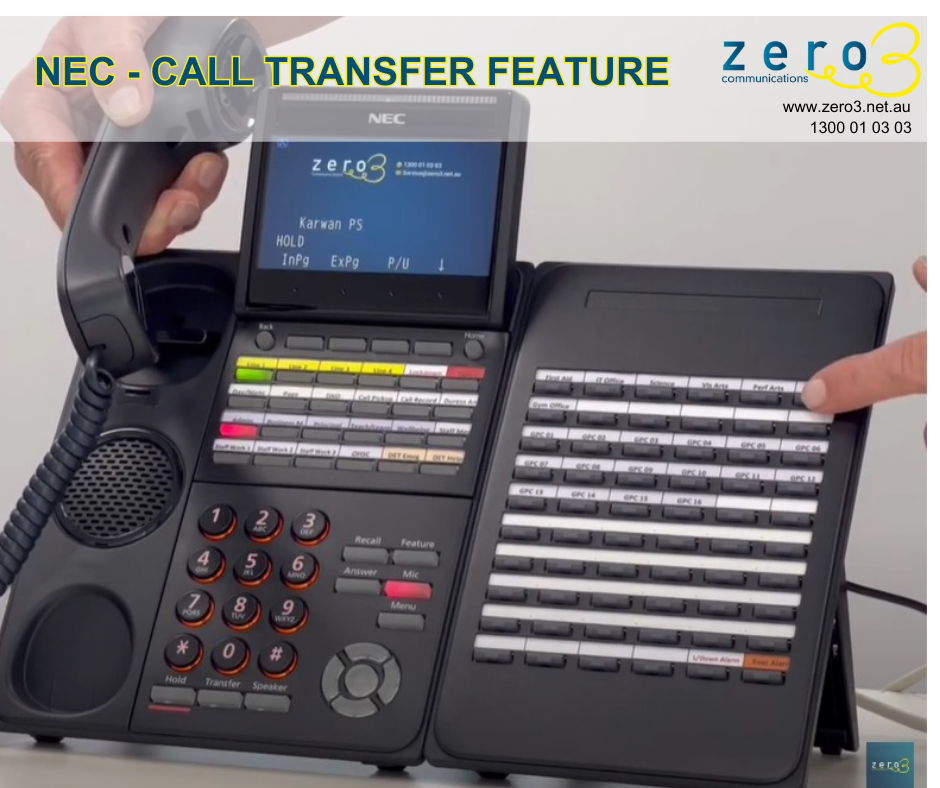
Learn how to use the call transfer feature on an NEC SV9100 phone system, including step-by-step instructions and tips for a successful transfer.
NEC – Call Record Feature
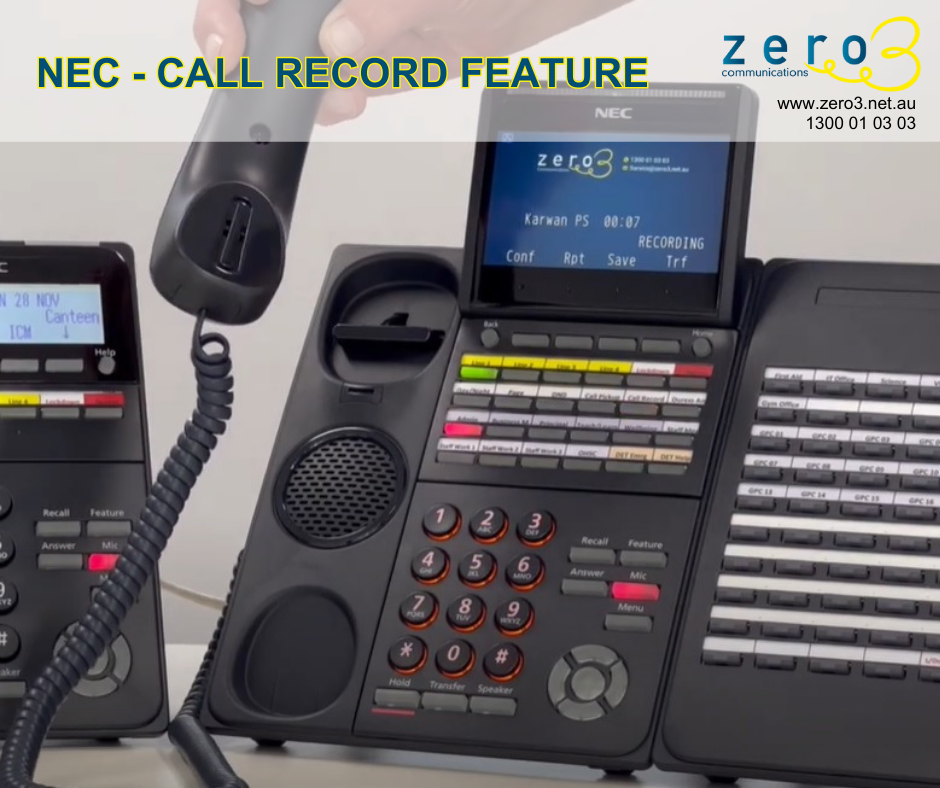
The featured video shows how to demonstrate a call record function on NEC SV9100 IP phone. Enquire Now on how to improve your business communication.
NEC – Call Pickup Feature
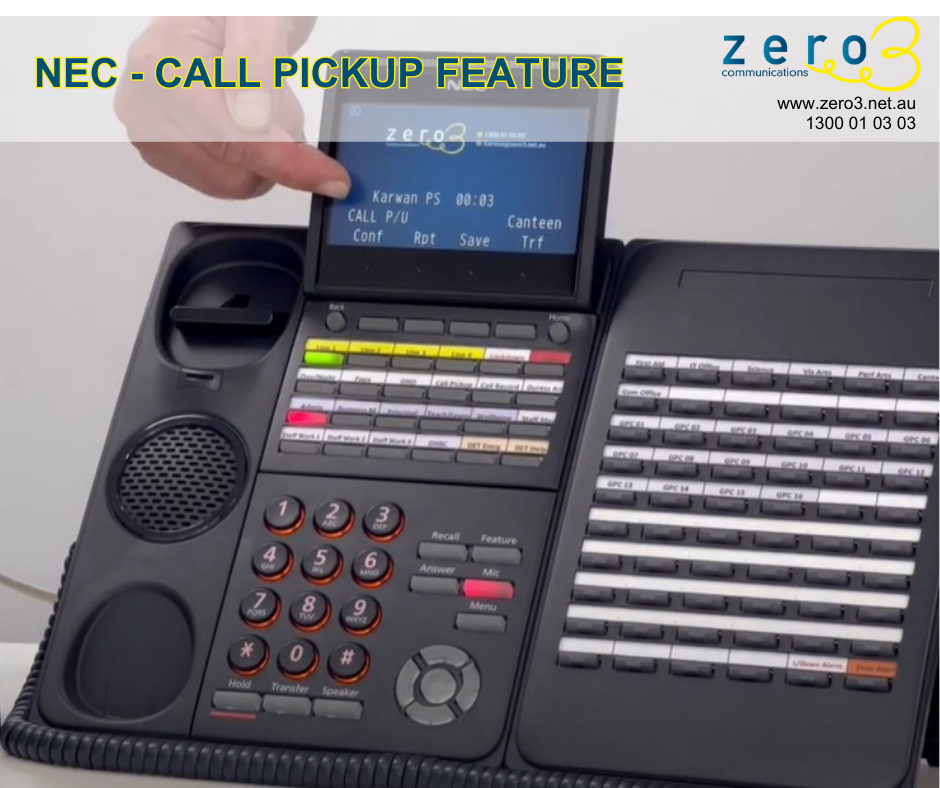
Learn how to use the Call Pickup feature on your NEC IP Phone. This guide walks you through the steps to use this feature and make the most of your phone system.
IPECS Voicemail
In this video, we show you ways to access your personal voicemail, set up your personal voicemail greeting and transfer an active call to voicemail.
IPECS Transfer
In this video, we explain how to transfer a call from one handset to another, ensuring a smooth and seamless transition. A cold transfer (or blind transfer) directly routes a call to another person or department without any prior notification or context. Warm transfers, on the other hand, involve the initial person speaking with the receiving person (while the caller is on hold) to provide background information and context before transferring the call. To perform a warm transfer, press the Transfer button and wait until the recipient answers. Announce the call, then hang up. For a blind transfer, simply press the Transfer button and hang up immediately.
IPECS Redial
In this video, we show you how to redial a phone number using your Call Log history.
IPECS Placing an External Call
In this video, you will be shown how to place an external call via your handset, or speakerphone.
IPECS Paging
In this video, we show you how to make a Page via your LG 1040i handset. The announcement will be heard through your Handset Speakers by default, and if applicable, your PA Speakers. For handsets that do not have the Page button, dial #40 instead.
IPECS Mute
In this video, we show you how to temporarily Mute yourself when in an active call.
IPECS Lockdown
In this video, we demonstrate how the Lockdown feature can support your school or business. The Lockdown button is designed to complement your existing emergency management plan. When a room initiates lockdown by pressing the button on their handset, a flashing light appears on reception or designated phones. This provides staff with a clear visual indicator of which rooms are secure and which may still need assistance.