
IPECS Paging – Emergency
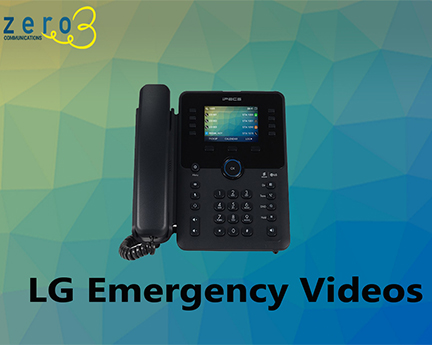
In this video, we show you how to make a Page via your LG 1040i handset. The announcement will be heard through your Handset Speakers by default, and if applicable, your PA Speakers. For handsets that do not have the Page button, dial #40 instead.
IPECS Lockdown – Emergency
In this video, we demonstrate how the Lockdown feature can support your school or business. The Lockdown button is designed to complement your existing emergency management plan. When a room initiates lockdown by pressing the button on their handset, a flashing light appears on reception or designated phones. This provides staff with a clear visual indicator of which rooms are secure and which may still need assistance.
IPECS Duress – Emergency
In this video, we show you how to initiate a Duress call, using the Duress softkey. The Duress softkey is programmed on all handsets. When activated, it rings the handsets assigned to the ‘Duress Answer’ group. Any member of the group can respond by picking up their handset, or pressing their speakerphone button, to manage the emergency.
IPECS Call Record – Emergency
In this video, we show you how to activate the Call Record feature. Call Record allows you to record active calls and play them back after the conversation has ended. Recordings can be stored directly on the handset or emailed to an email address, provided by you. Key Tip: Be sure to inform the caller that the call will be recorded.